logo ankerctl

Camera not available

Connection
AnkerMake M5C (AK75CU0D29300137)
MQTT PPPP CTRL
Temperature
0°C
0°C
Print Progress
00:00:00
00:00:00
0%
0/0
0mm/s

Connecting PrusaSlicer/SuperSlicer

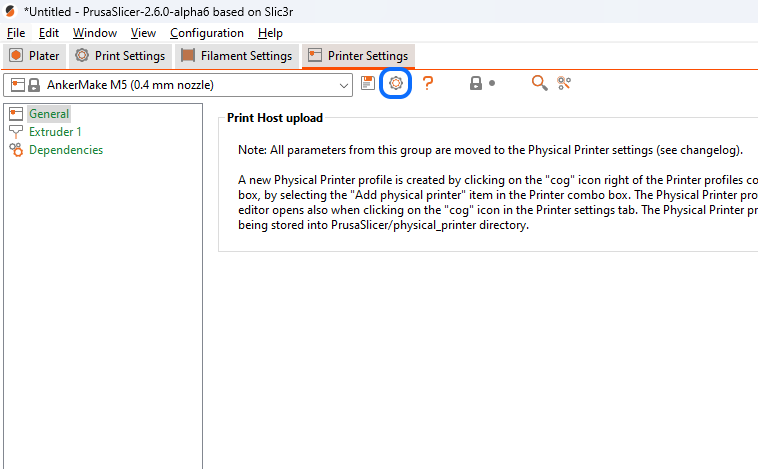
  1. Go to "Printer settings" tab
  2. Click the "Gear" icon (Add/Edit Physical Printer)
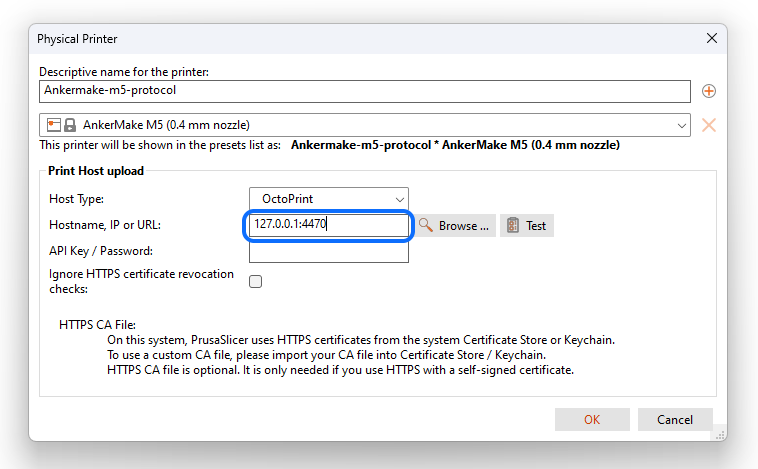
  3. Fill in "Descriptive name for the printer" with whatever you like
  4. Select your Ankermake printer instructions from the dropdown menu
  5. Under "Host Type" select "OctoPrint"
  6. In "Hostname, IP or URL" fill in with: print.home.mattlydon.me:80
  7. Leave "API Key / Password" blank
  8. Click "Test" to validate input
  9. Click "Ok" to close the window
  10. Slice your file as normal
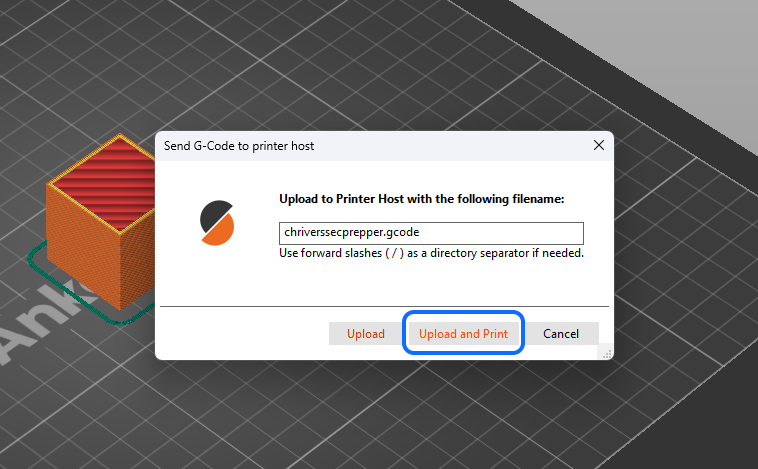
  11. Click "G" button to start direct upload to the printer
  12. Click "Upload and print" - the "Upload"-only is not supported
  13. Enjoy printing with ankerctl 😉
Hint: Ctrl+Shift+G will slice and open the upload to printer window
step 1 step 2 step 3 step 4
Print G-Code File
Supports .gcode, .acode and .zip
Fetch Config From AnkerMake Server
Email
Password
Please solve CAPTCHA:
Country
Update Printer IP Addresses

Make sure your printers are connected to your Wifi and are located in the same network as Ankerctl.

Upload AnkerMake Login File
Reload Ankerctl Services

If you are experiencing issues with printing or viewing the video feed reloading the Ankerctl services will often resolve these issues.

AnkerMake M5 Config
Account:
  user_id:    0e9d7a27a3...[REDACTED]
  auth_token: 339bc27783...[REDACTED]
  email:      boarder.final-0e@icloud.com
  region:     US
  country:    [REDACTED]

Printers:
  printer:   0
  id:        4579351
  name:      AnkerMake M5C
  duid:      USPRAKM-036186-RFXWM
  sn:        AK75CU0D29300137
  model:     V8110
  created:   2023-07-19 17:11:25
  updated:   2025-08-20 11:26:33
  ip:        192.168.4.153
  wifi_mac:  E8:EE:CC:96:16:1B
  api_hosts:
     - 34.223.135.175
     - 50.18.152.83
     - 3.136.55.77
  p2p_hosts:
     - 34.223.135.175
     - p2p-mk-ohi.eufylife.com
     - p2p-mk-cal.eufylife.com